Proxyma — a reliable provider of residential and ISP proxies

Proxies have become a basic tool for online work. They are used for multi-accounting, scraping, bypassing blocks and regional restrictions, as well as for privacy protection. Therefore, high-quality proxies are an investment in stability, reducing the risk of bans, and the ability to scale. The lifespan of accounts and the stability of infrastructure directly depend on the reliability of the provider.
In this article, we will review the Proxyma service and analyze whether its proxies are suitable for work tasks.
Overview of Proxyma
Proxyma is a proxy service offering residential and ISP proxies for business tasks. The service was founded in 2023 and is aimed at users who need stable proxy operation for multi-accounting, automation, parsing, and working with various online platforms.
Use the promo code LinkenSphere20 to get a 20% discount on your first purchase of proxies from Proxyma.
Basically, the service offers:
- Residential proxies — IP addresses of real users. Dynamic proxies with IP rotation and options with unlimited traffic are available for high-load tasks, such as scraping and automation.
- ISP proxies — high-speed static IPs that are assigned to a user and do not change during operation, making them ideal for working with social networks.
There are also separate categories of proxies for parsing, e-commerce, and crypto tasks.
Proxyma provides proxies from 190+ countries. You can choose either a mix of different countries (during rotation, the new IP will belong to a different GEO) or specify a specific city in the selected GEO.
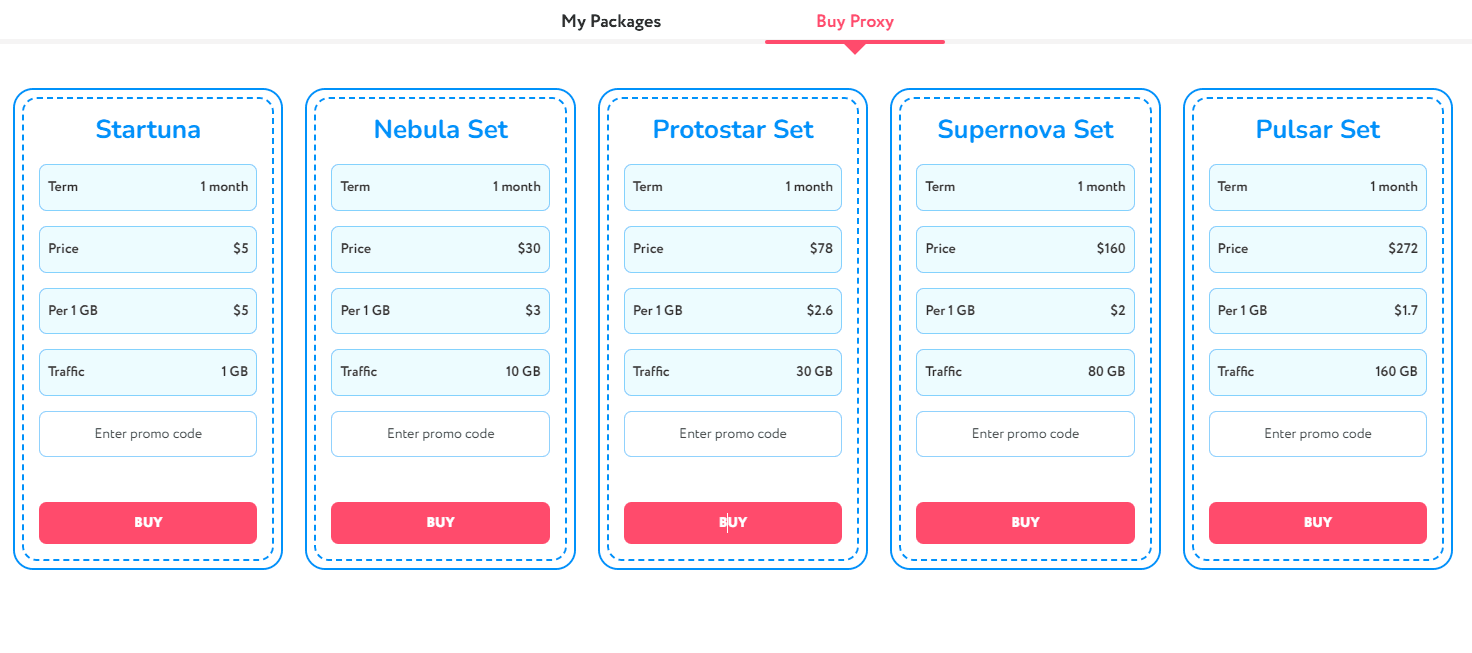
Dynamic residential proxies from Proxyma are sold in traffic packages for a period of 1 month. Tariffs differ in volume and price per 1 GB: as the package volume increases, the cost of one gigabyte decreases, making larger tariffs more profitable for high traffic volumes.
The following packages are available:
- Startuna — 1 GB of traffic for $5 ($5 per 1 GB).
- Nebula Set — 10 GB for $30 ($3 per 1 GB).
- Protostar Set — 30 GB for $78 ($2.6 per 1 GB).
- Supernova Set — 80 GB for $160 ($2 per 1 GB).
- Pulsar Set — 160 GB for $272 ($1.7 per 1 GB).
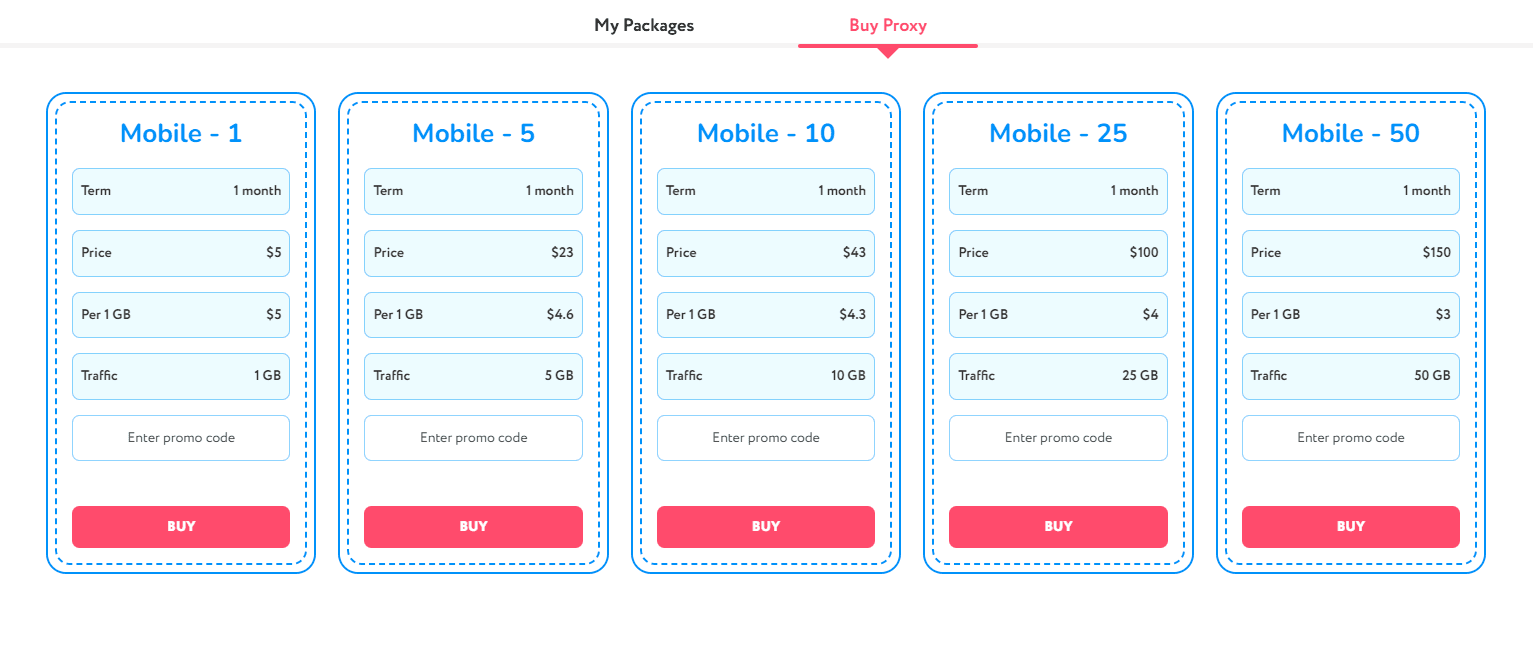
Mobile residential proxies are also sold in traffic packages for a period of 1 month. The following packages are available:
- Mobile 1 — 1 GB for $5 ($5 per 1 GB).
- Mobile 5 — 5 GB for $23 ($4.6 per 1 GB).
- Mobile 10 — 10 GB for $43 ($4.3 per 1 GB).
- Mobile 25 — 25 GB for $100 ($4 per 1 GB).
- Mobile 50 — 50 GB for $150 ($3 per 1 GB).
Unlimited residential proxies are paid based on the duration of use. Traffic is unlimited, speed up to 200 Mbps.
ISP proxies from Proxyma are static IPs with unlimited traffic. The tariff depends on the number of IPs, the period is 30 days. The cost is calculated based on the number of assigned static IPs. Packages from 1 to 700 IPs are available, prices start from $5 for the minimum tariff and increase proportionally to the number of addresses in the package. For example, when purchasing 10 IPs, the cost will be $29 for 30 days, and when choosing 100 IPs — $255 for the same period.
Testing Proxyma in Linken Sphere: step-by-step guide
Next, we will analyze the process of working with proxies in practice: from registering with the service and purchasing proxies to adding them to a profile and checking the connection in Linken Sphere.
Registration and interface
First, you need to register with the Proxyma service. To do this, follow the link and click the Sign Up button in the upper right corner.
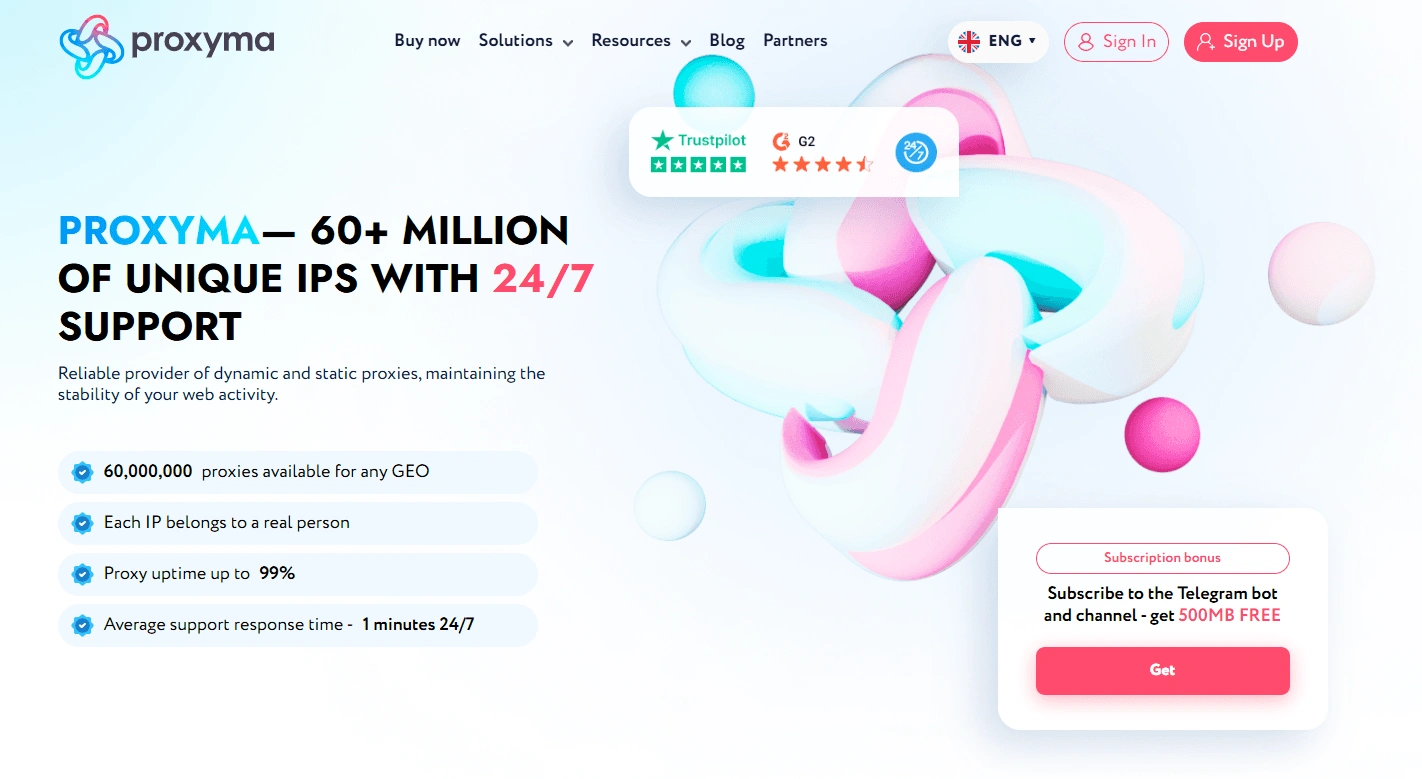
You can create an account by entering a nickname, email address, and password, or log in via Google — whichever is more convenient. Afterward, you are taken to the Proxyma dashboard, where all work with proxies is carried out.
The main menu is located on the left side of the interface. Here are the sections with proxy types, as well as access to finances, profile, and additional service tools.
The account balance and user email are displayed at the top.
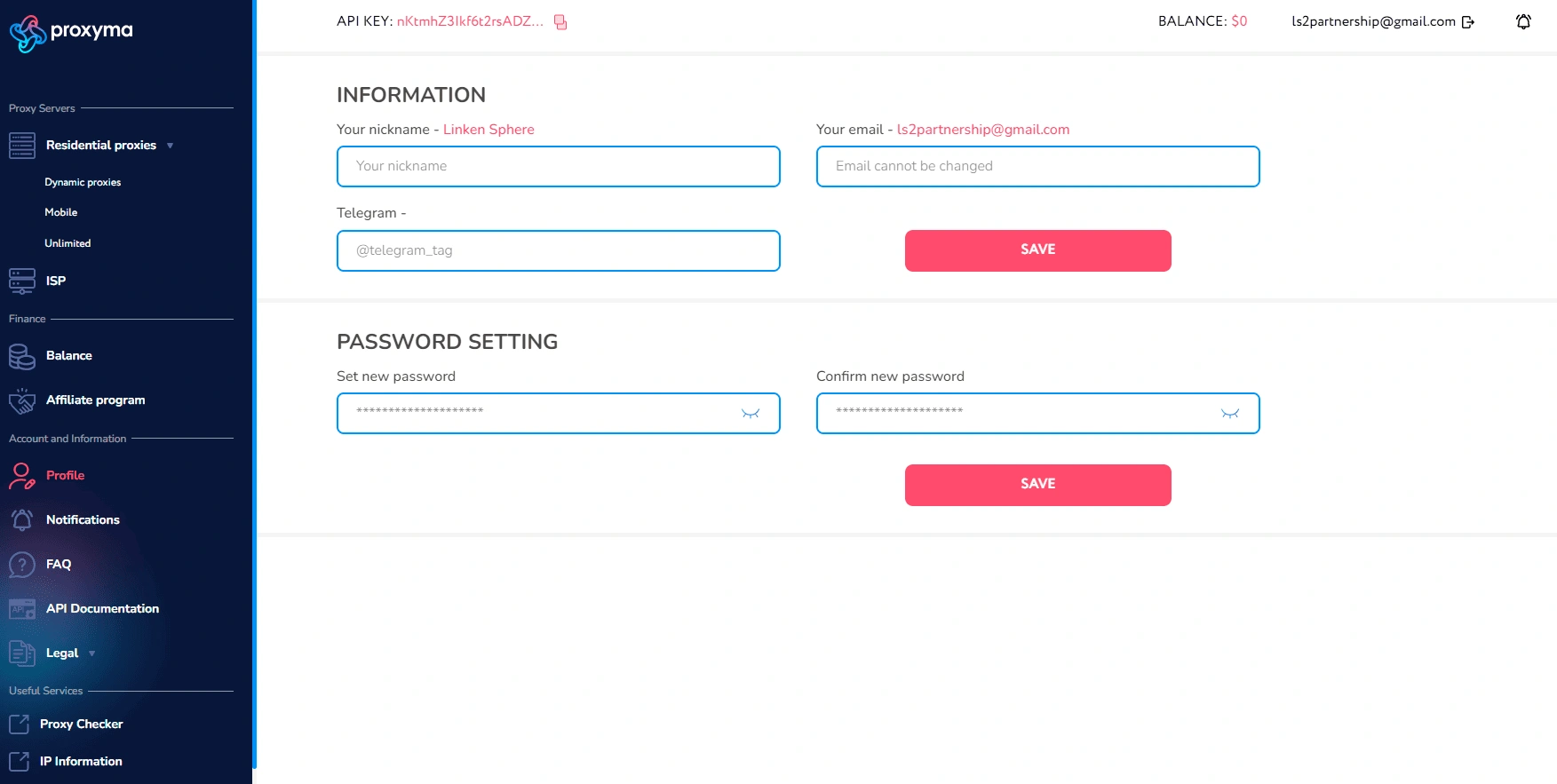
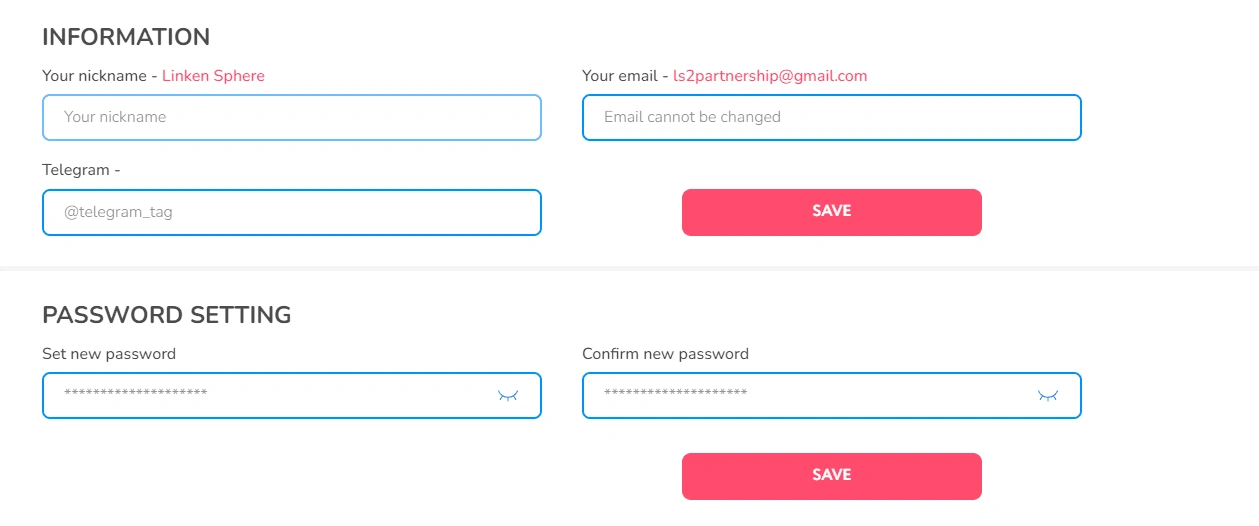
In the Profile section, you can change your nickname, add Telegram, set a new password, and get an API key for working with the service.
To buy proxies, select the desired proxy type in the left menu under the Proxy Servers section — Residential proxies (Dynamic, Mobile, or Unlimited) or ISP.
After navigating to the proxy section, the My Packages tab opens first, displaying active tariffs. If proxies haven't been purchased yet, you will see a message about the absence of active plans in this section.
To proceed to purchase, you need to open the Buy Proxy tab at the top of the page. This is where all tariff packages for the selected proxy type are located.
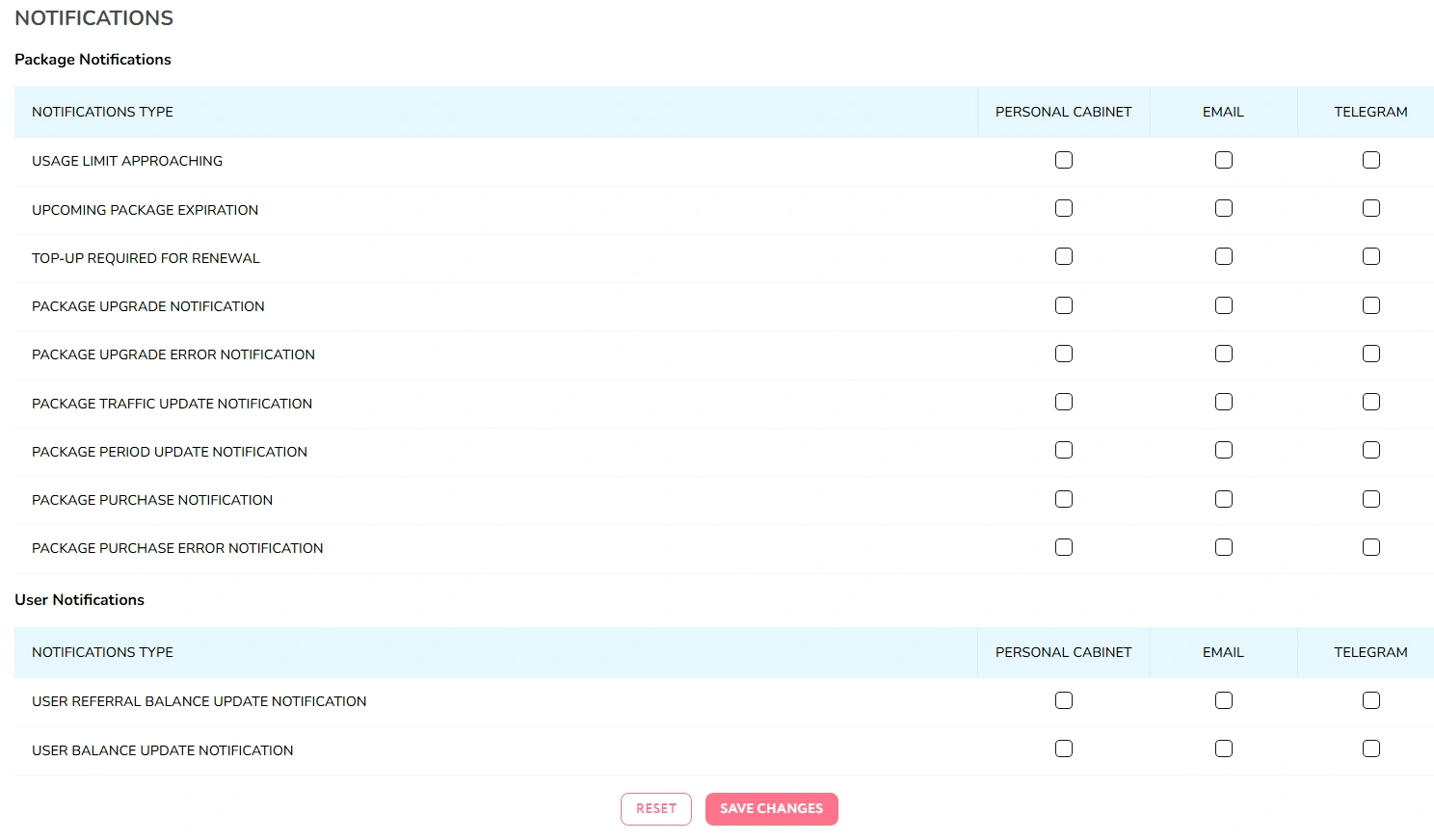
The Proxyma dashboard has a Notifications section where you can configure notifications for account events. Here you can enable alerts for actions related to tariffs and proxies, such as approaching the traffic limit, package expiration, the need to top up for renewal, tariff updates, and purchase operations.
Notifications for the account itself are configured separately, including balance changes and referral program accruals.
For each event, you can choose the notification method: inside the dashboard, via email, or via Telegram.
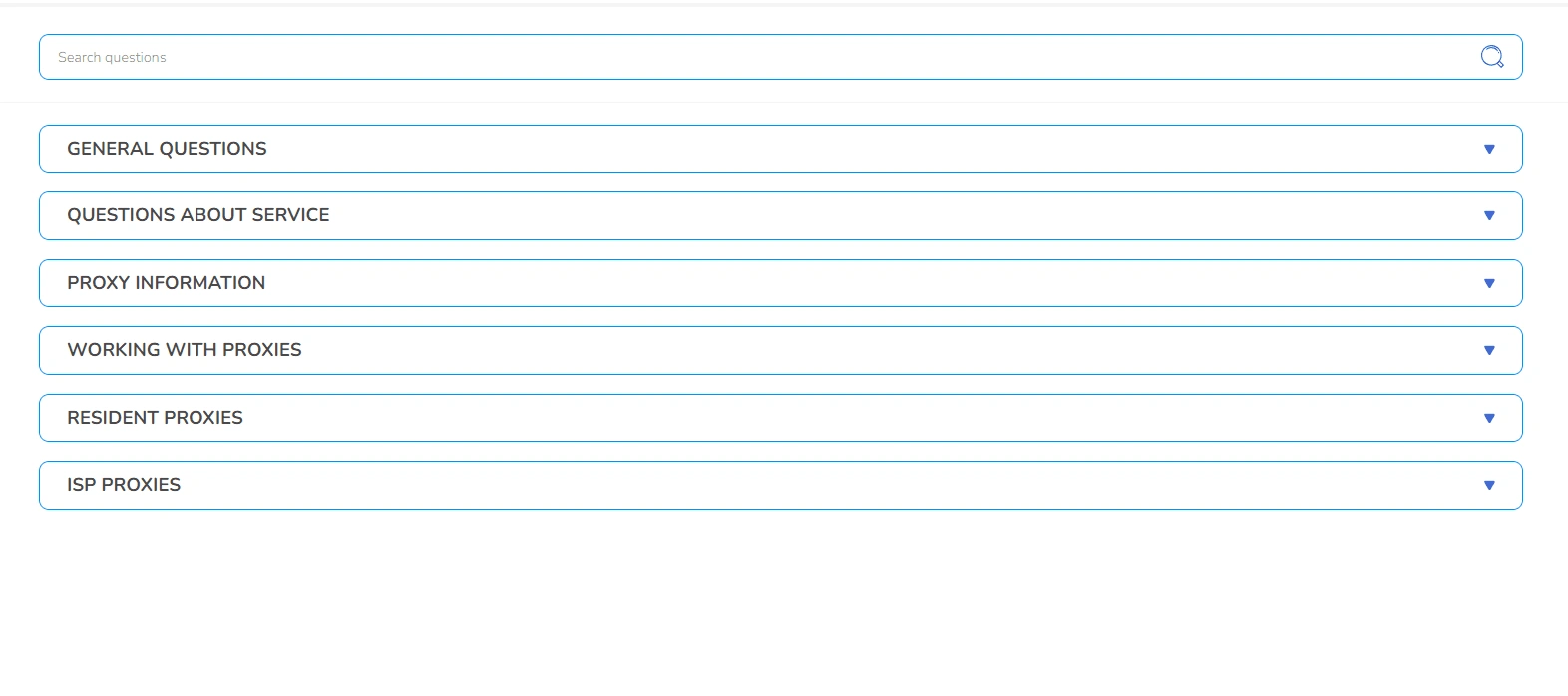
The dashboard also features an FAQ section, which collects answers to basic questions about working with the service. Materials are broken down by topic:
Choosing and buying proxies
In our example, we will be buying dynamic residential proxies. To do this, in the Proxyma dashboard, open the section Proxy Servers → Residential proxies → Dynamic.
After navigating, the My Packages tab opens first, showing active packages. To buy a proxy, go to the Buy Proxy tab at the top of the page.
In our example, we select the Nebula Set tariff for $30. To confirm, click the BUY button.
After purchase, the tariff appeared in the My Packages tab. The list shows the selected Nebula Set package, the Active status, and the expiration date. This means the package has been successfully activated and the proxies are already available for further use.
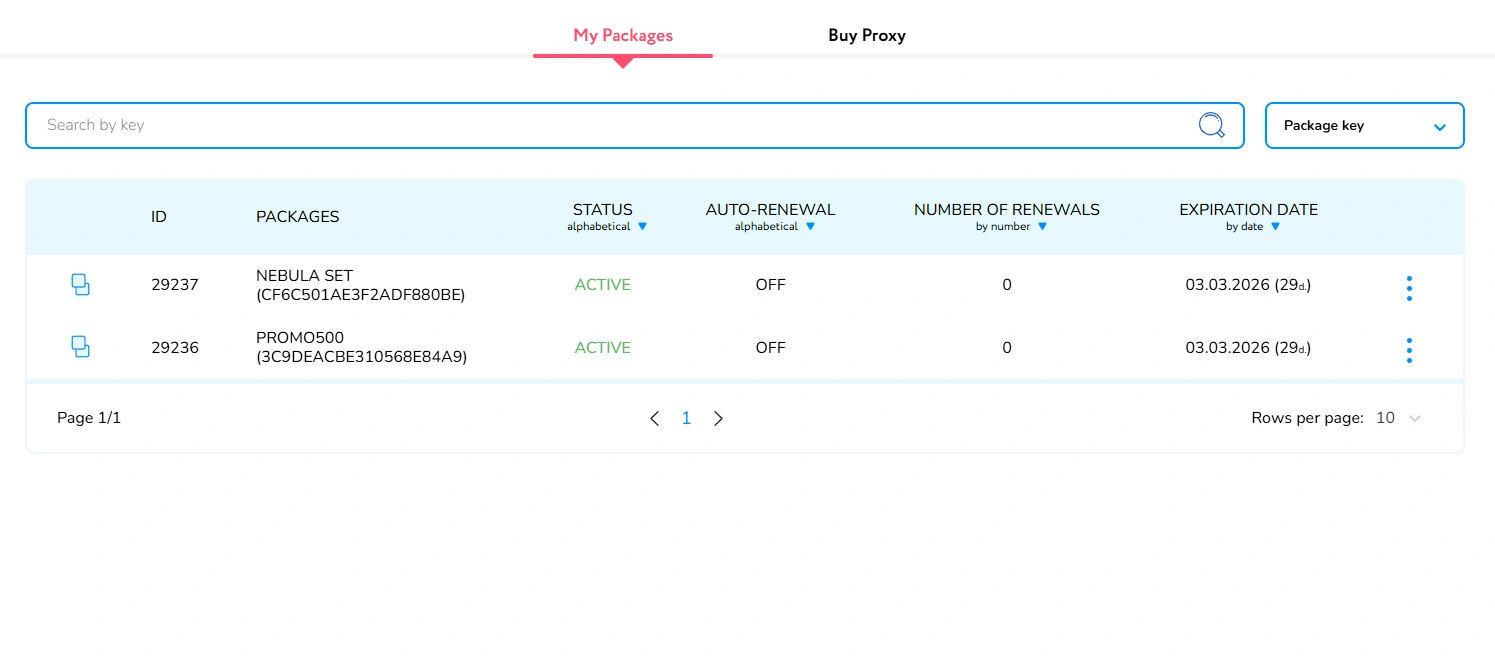
Next, click on the name of the purchased tariff in the My Packages tab (in our case, Nebula Set) — the package management page will open.
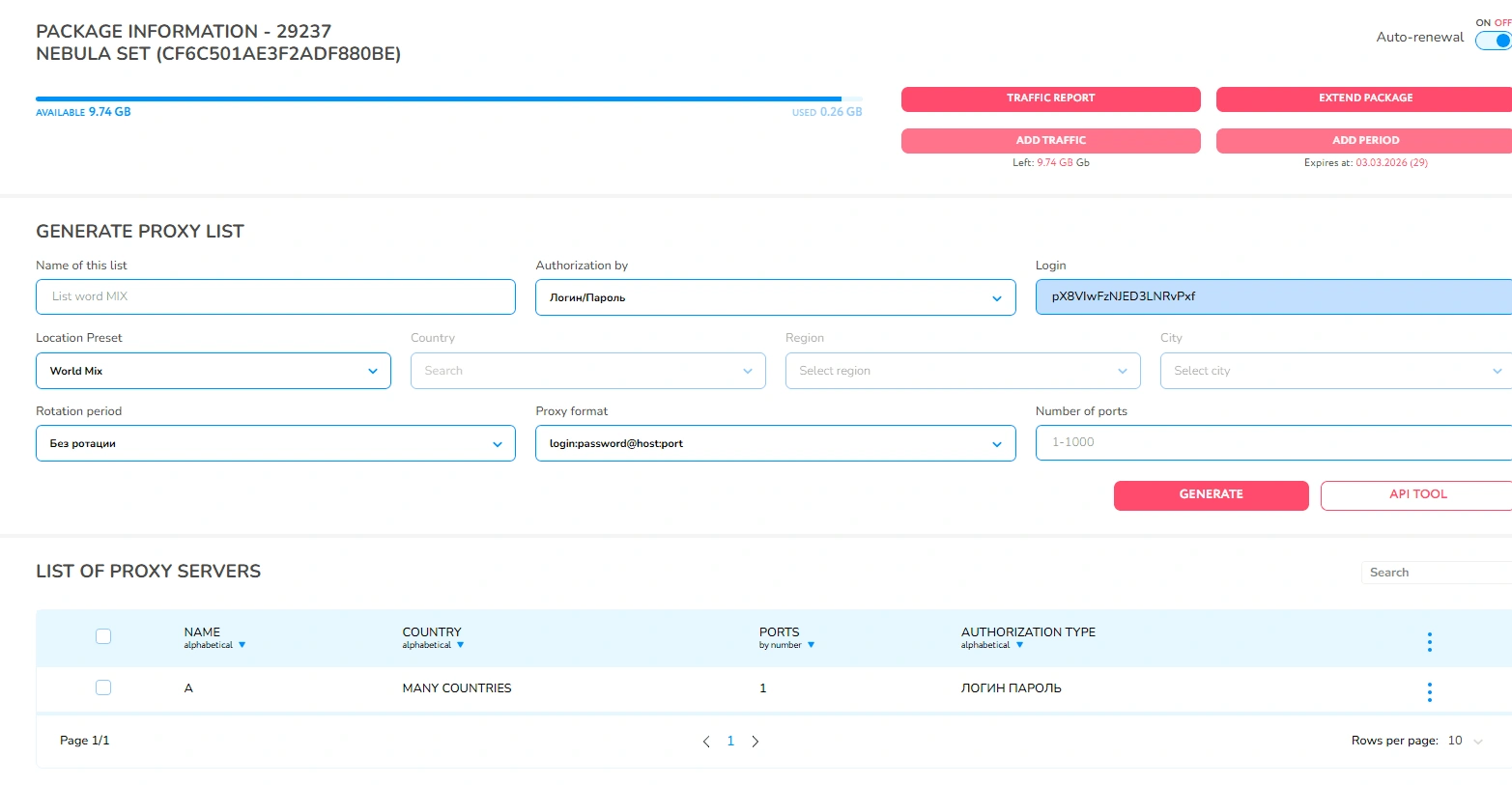
In the Generate Proxy List block, we configure the proxy for our task. We leave the authorization as Login/Password. In Location Preset, we selected a mix of different countries. We leave the format standard — login:password@host:port. In the Number of ports field, we specify 1, as we need one proxy. Click the Generate button. After that, the created proxy appeared below in the List of Proxy Servers block.
Adding proxies to Linken Sphere
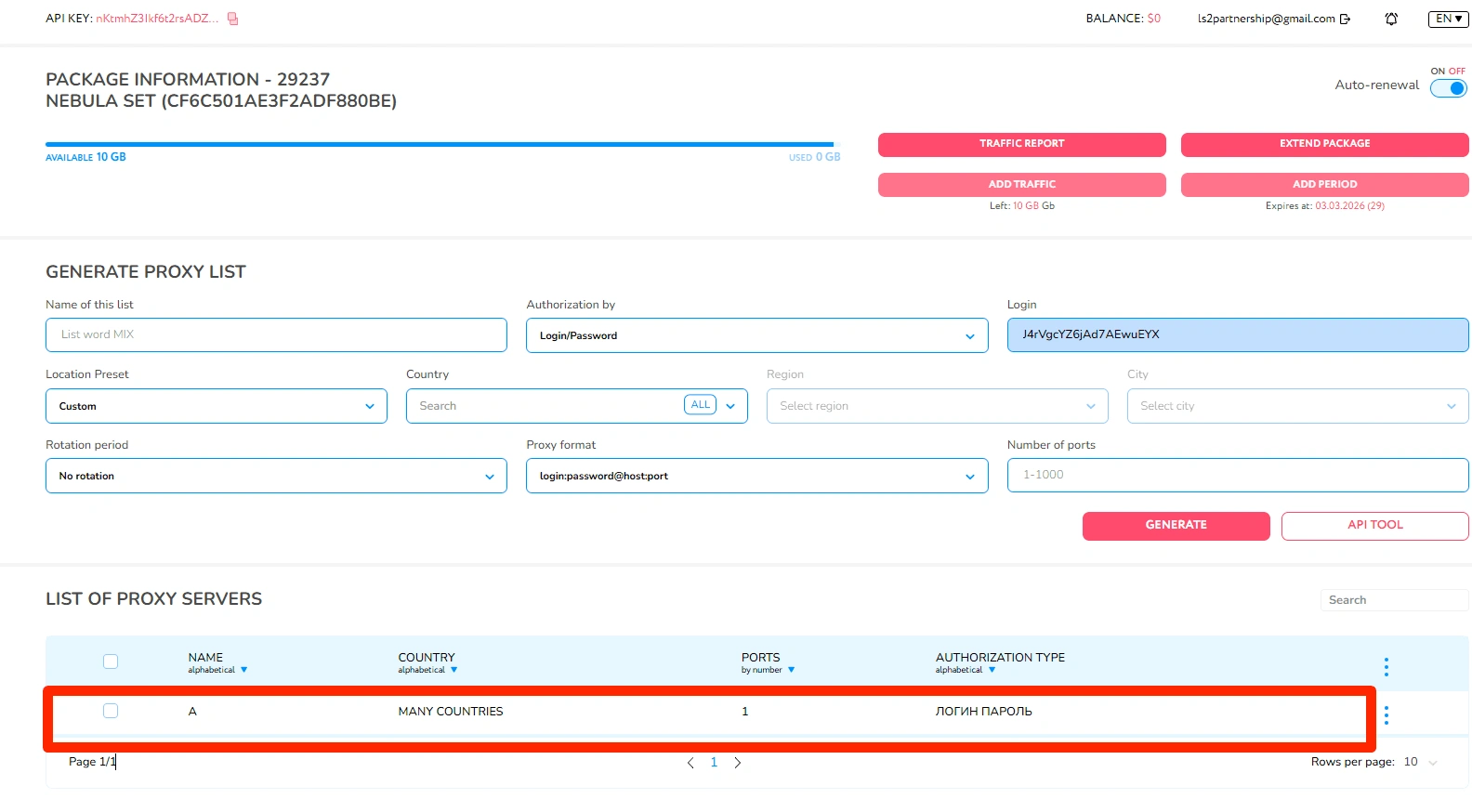
To get the proxy data, click on the row of the created proxy in the List of Proxy Servers block — on the entry itself (where the name, country, port, and authorization type are listed).
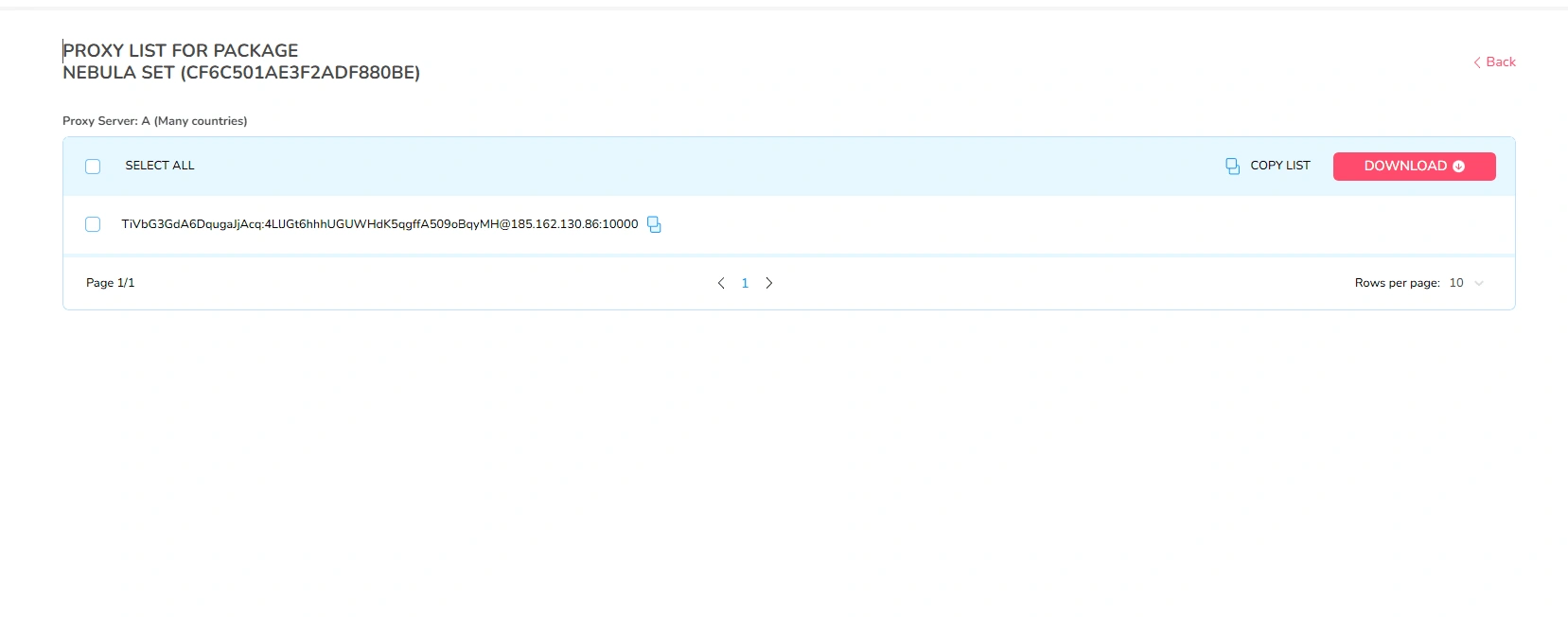
After clicking on the created proxy, a page with a list of connection data opens. The proxy itself is already displayed here in a ready-made format — this is what needs to be copied.
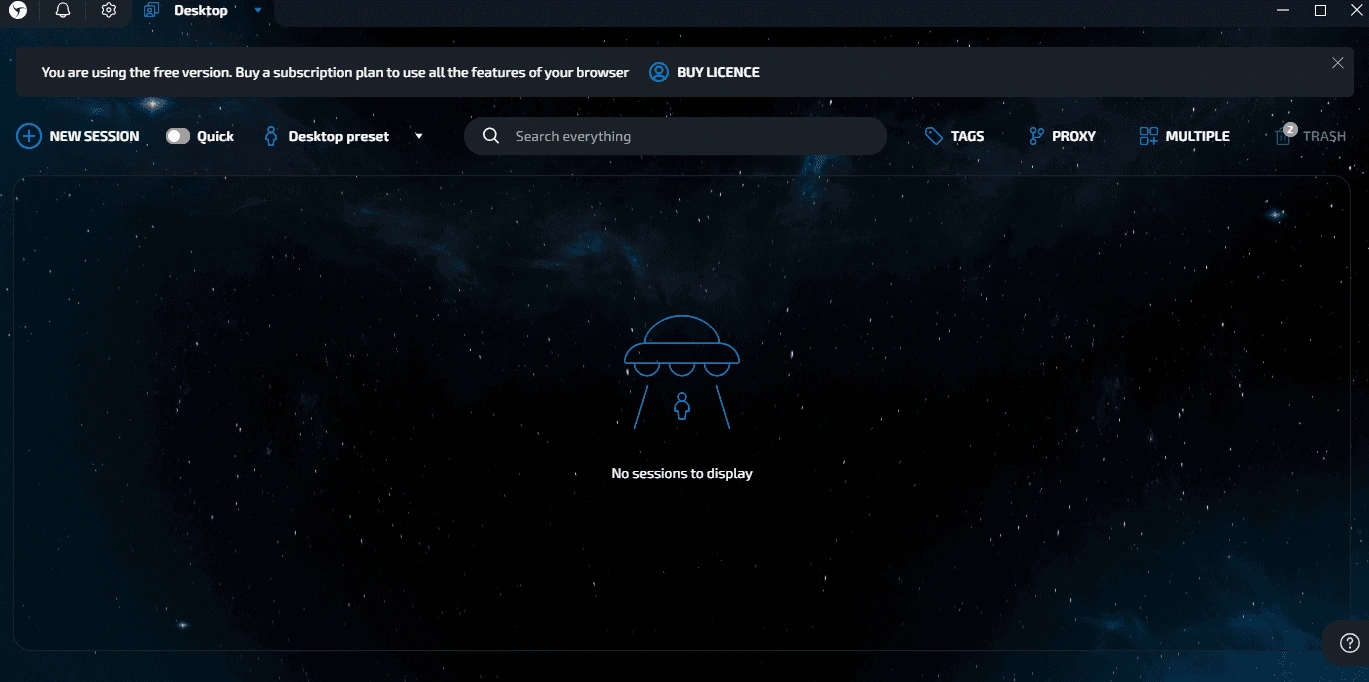
Now, in the Linken Sphere antidetect browser, we create a new session. To do this, click the NEW SESSION button in the upper left part of the interface.
In the CONNECTION block, paste the previously copied proxy data into the proxy field. After that, an automatic IP check is performed — we see the status HTTP is alive.
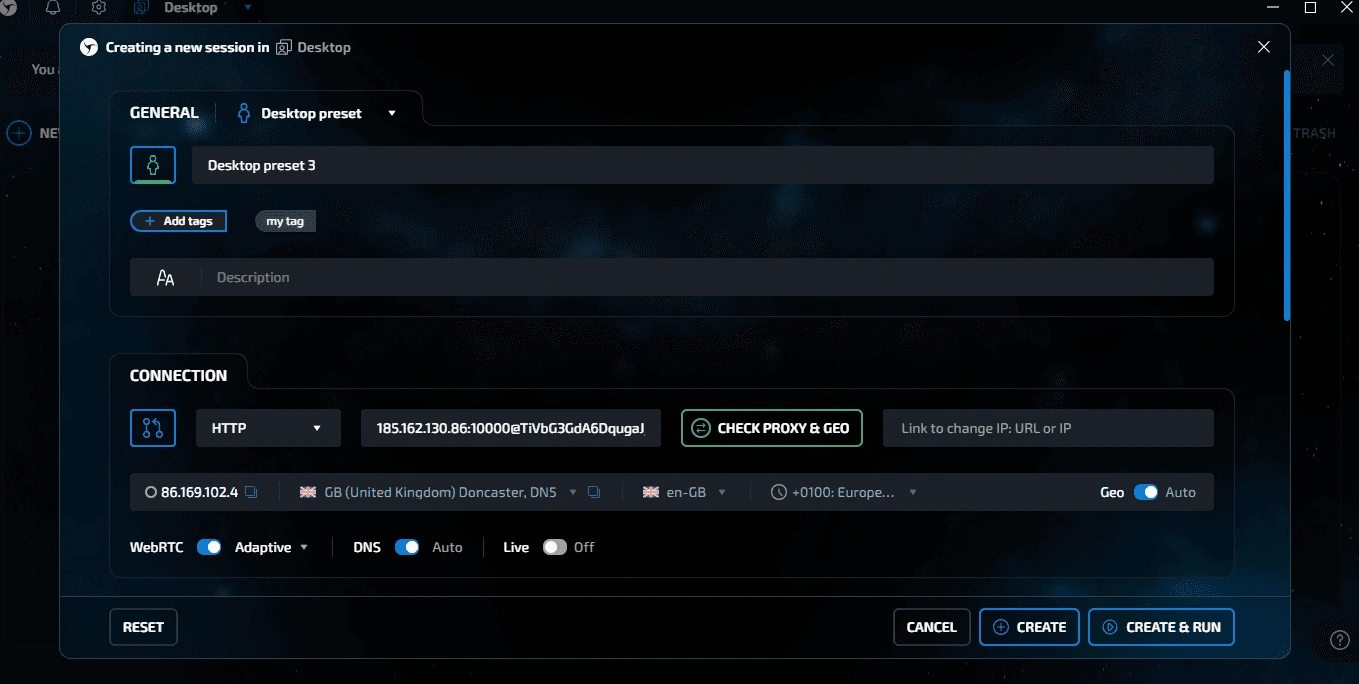
After that, we complete the profile creation.
The final step is to check that the proxy is really working as needed. First, open the site fv.pro in the new profile. The service showed our current IP, country, and city, which are determined by this address. This confirms that the profile connected to the Internet through the proxy, and not through our real IP.
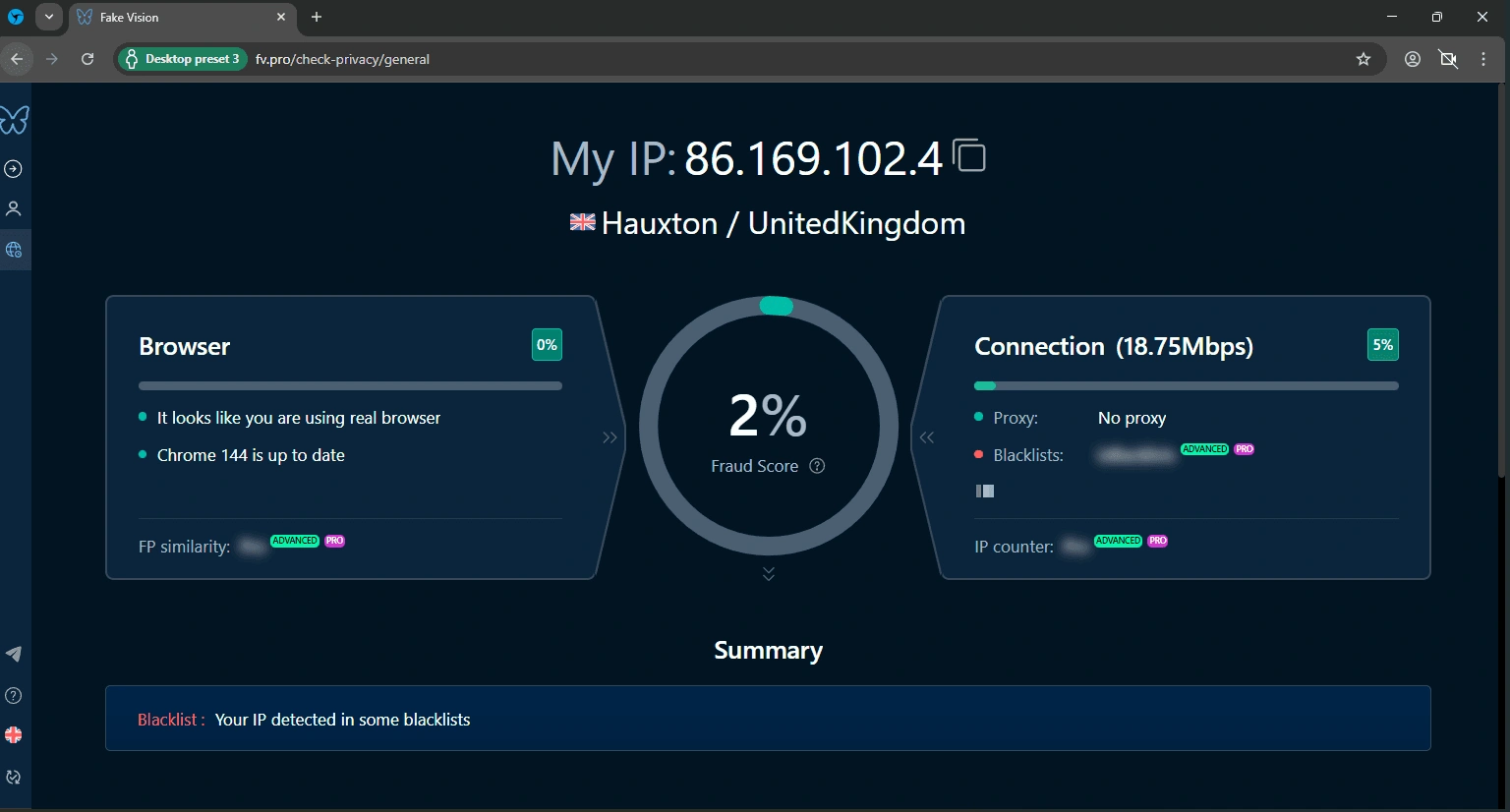
The Fraud Score indicator is low — this is good, meaning the profile does not look suspicious. In the Browser block, it is visible that a real browser and an up-to-date version of Chrome are being used, meaning everything looks normal on the browser side.
Next, we look at the Connection block. Here the service shows the connection speed. Below, in the General block, the technical parameters of the profile are revealed. We see that Windows 10, the current version of Chrome, the video card, the language en-GB, screen resolution, and timezone are detected. Everything looks like a normal real machine, without strange values — this is good, meaning the browser fingerprint in Linken Sphere was selected perfectly.
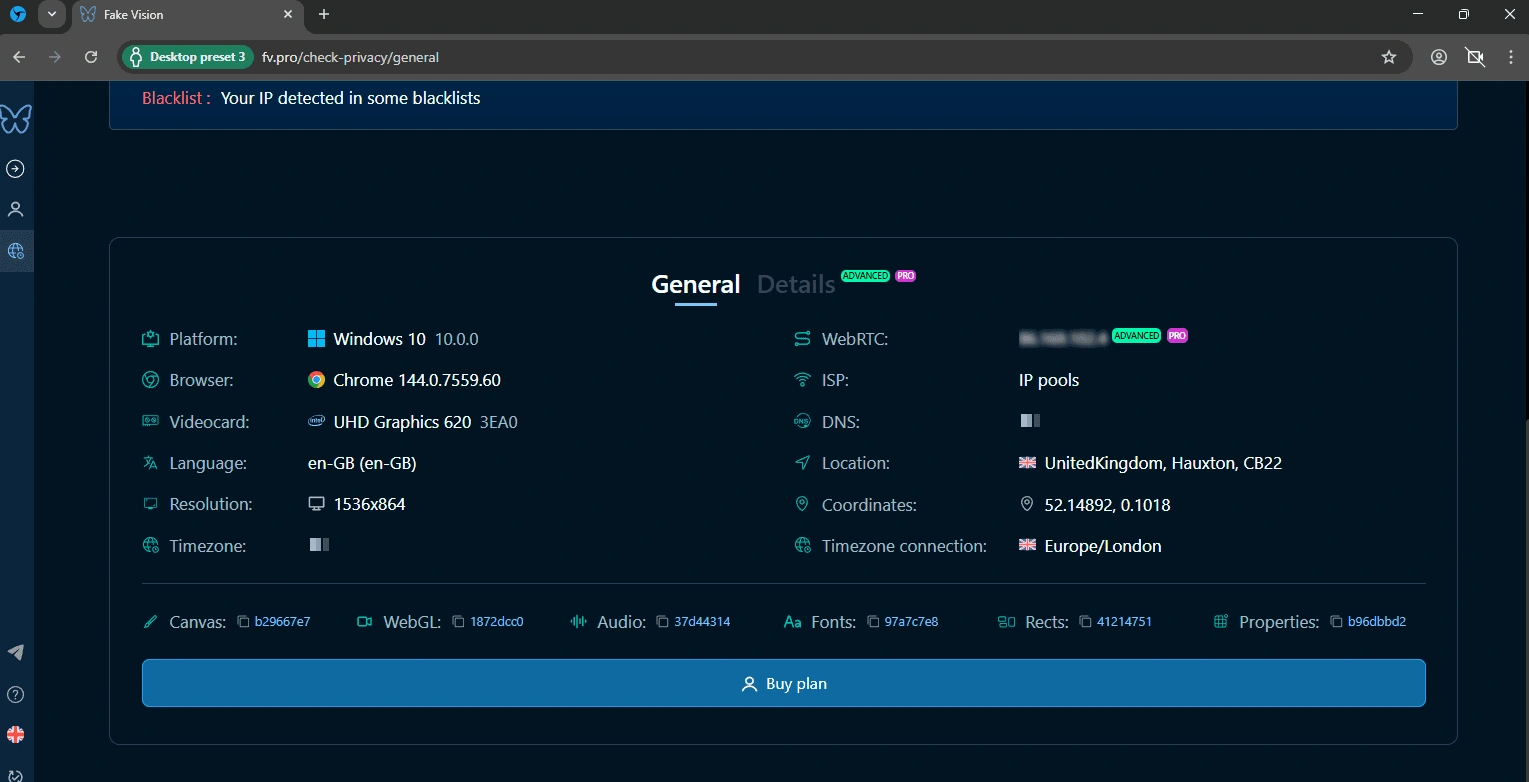
Network data is displayed on the right: ISP, DNS, location, coordinates, and connection timezone. This is an important point: there is no desynchronization between IP, GEO, and time zone, as such inconsistencies often reveal poor configuration.
At the bottom, fingerprint parameters are visible — Canvas, WebGL, Audio, Fonts, Rects, and other values. They simply record the current fingerprint of the profile.
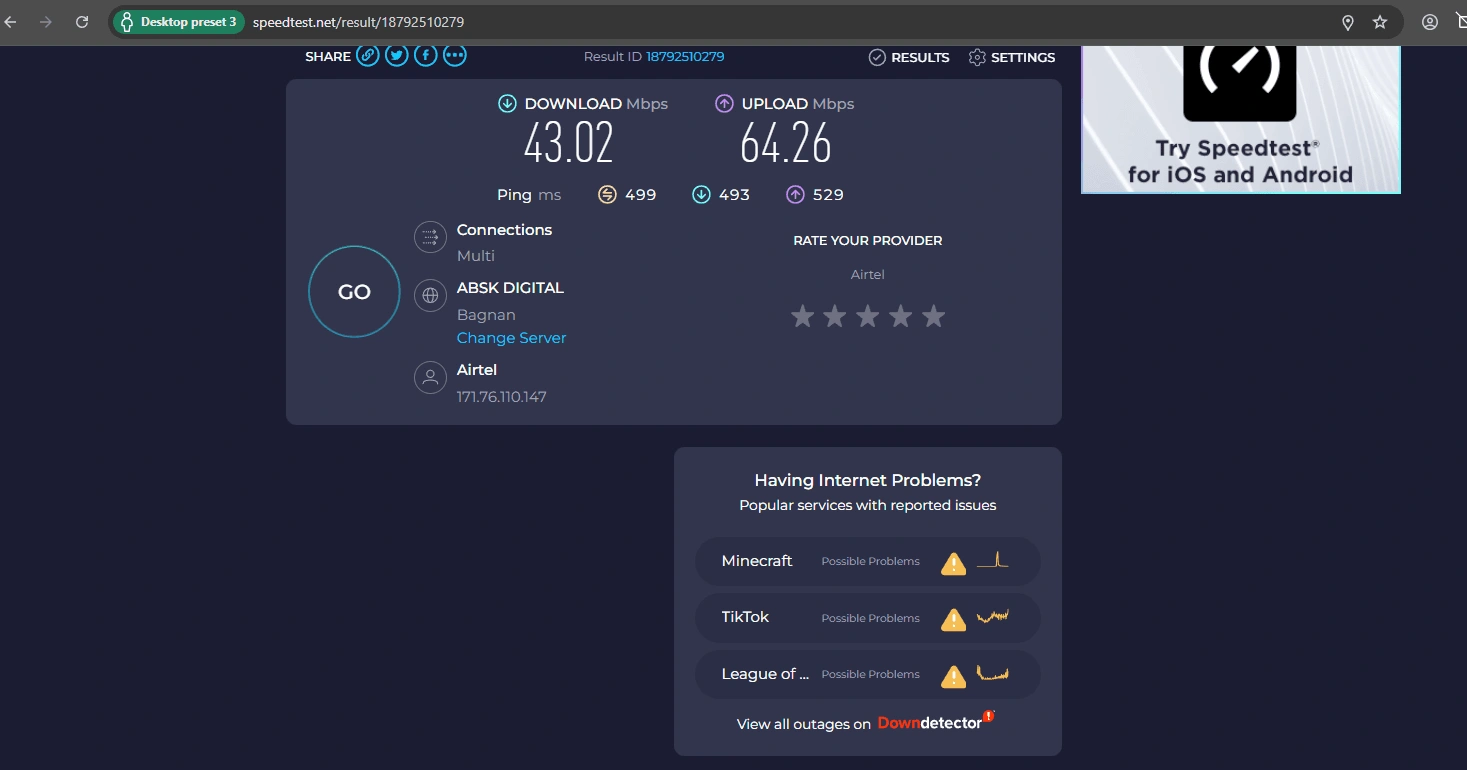
Additionally, we check the connection via Speedtest. In the same profile, open the speedtest.net website and run a speed test.
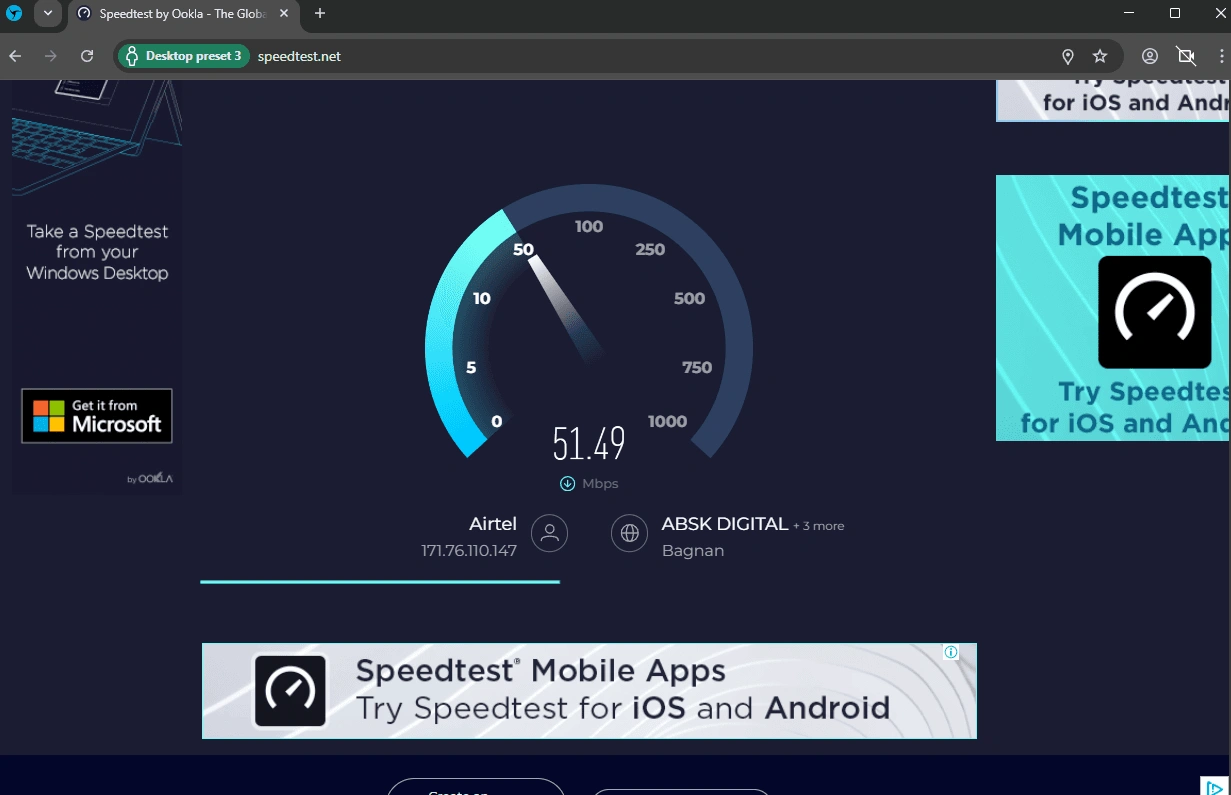
Soon the system showed specific connection values through our proxy: download speed about 43 Mbps, upload — 64 Mbps. These are normal working values for a residential IP — the connection is not dead, without severe drops, pages and services will open without problems. An unpleasant moment — the ping is quite high.
Conclusion
Proxies from Proxyma combine perfectly with the Linken Sphere antidetect browser. The connection really works through the issued IP. This is evident from the check on fv.pro: the service shows the IP, country, and city that correspond to the proxy. The Fraud Score is low, and the browser is detected as a normal up-to-date Chrome without suspicious triggers. This means the profile and proxy connected correctly and technically everything works as it should. We recommend testing proxies from Proxyma, especially since the promo code LinkenSphere20 gives a 20% discount on the first purchase.
Frequently Asked Questions
Yes, Proxyma provides an API for working with proxies outside the dashboard. Through it, you can automate proxy retrieval, integrate them into your own tools, automation software, parsers, and internal systems.
Balance top-up is possible via bank cards and cryptocurrency. The commission depends on the chosen method. All operations are displayed in the transaction history in the dashboard, where you can track the status of top-ups and control proxy expenses.
Yes, the service has a referral program. The user receives a personal link to attract new clients and a percentage of their spending in the system. The dashboard displays: the number of referrals; total earnings; current referral balance; accrual history. Funds can be withdrawn or transferred to the main balance to purchase proxies.
Proxyma support works 24/7. Online chat in the dashboard — the support widget is located on the right at the bottom of the interface. Through it, you can quickly ask a question about tariffs, proxies, connection errors, and other technical issues. Telegram support bot — https://t.me/ProxymaSupBot. Convenient for prompt requests and solving technical questions outside the dashboard.