How to change a computers MAC address
A MAC address is a unique identifier for a device's network interface, a sort of "passport number" for Wi-Fi, Ethernet, or other network adapters. It is assigned to the hardware by the manufacturer and is used to recognize devices within local networks by routers, access points, and other network equipment.
A single computer can have multiple MAC addresses—separate ones for Wi-Fi, wired connection (Ethernet), Bluetooth, and other interfaces.
Changing (spoofing) a MAC address can be used in various situations:
- bypassing network restrictions — for example, if there is a limit on the number of connected devices in the network
- enhancing privacy when connecting to different networks
- testing and configuration of network equipment
- diagnosing network problems or checking the operation of MAC address filtering
Changing a MAC address may violate the usage rules of the network, provider, or organization. In some cases, this can lead to access blocking, network conflicts, or other connection problems.
How to find your computer's MAC address
You can find out the MAC address using standard system tools. Below are methods for the main operating systems. Note that the address will be different for Wi-Fi and wired connections, so check the specific interface you need.
Windows
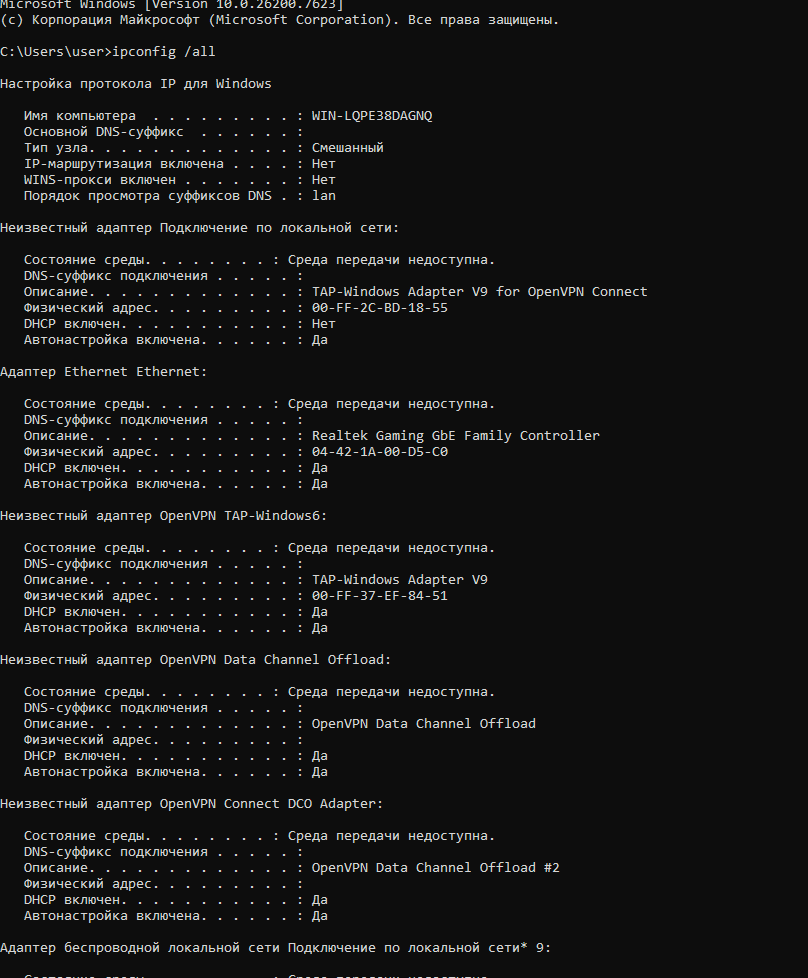
Method 1: via Command Prompt
- Press Win + R, type cmd, and press Enter
- Enter the command:
ipconfig /all - Find the required adapter (Ethernet or Wi-Fi)
- The line "Physical Address" is the MAC address
Method 2: via Graphical Interface
- Open "Settings"
- Go to the "Network & Internet" section
- Select Wi-Fi (or "Ethernet" if connected by cable)
- Click "Hardware properties"
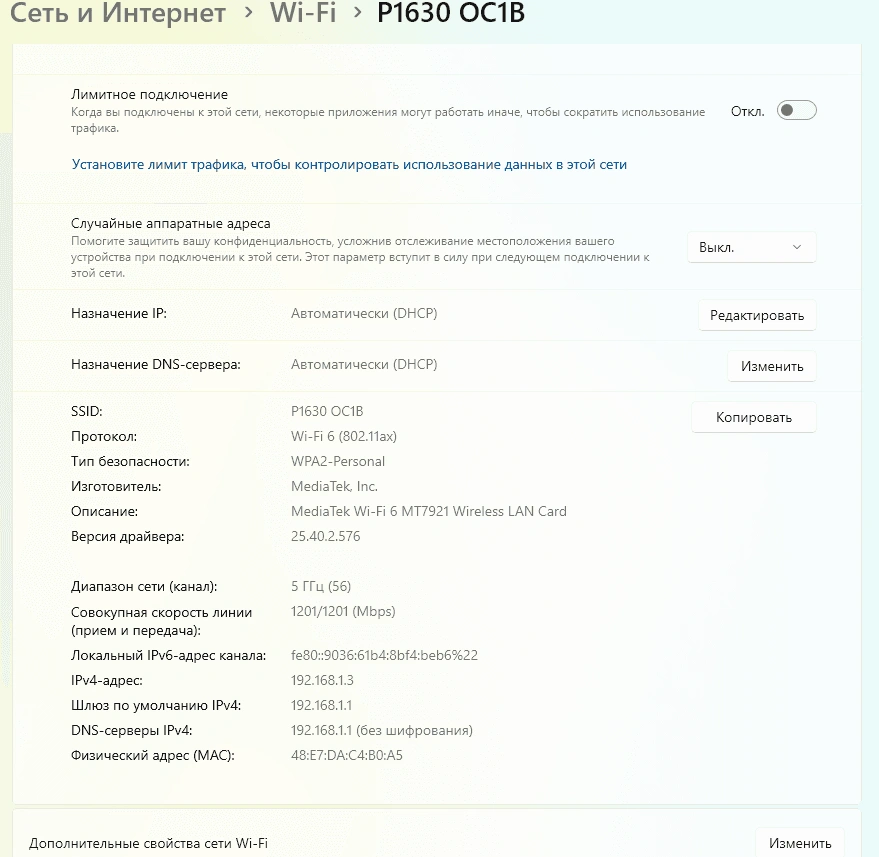
- The MAC address of the device is listed in the "Physical address (MAC)" line
macOS
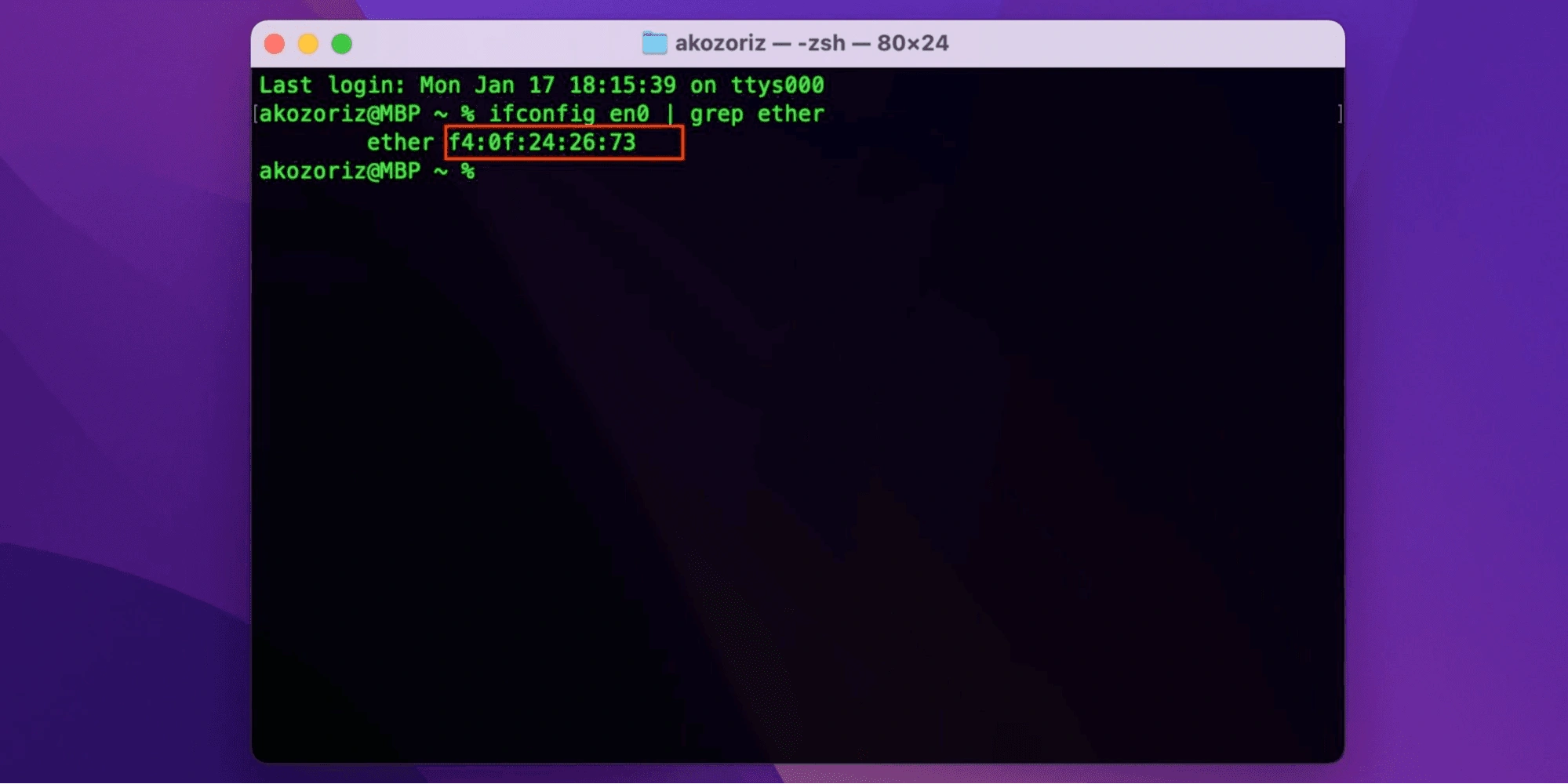
Method 1: via Terminal
Open Terminal and type:
ifconfig en0 | grep ether or networksetup -getmacaddress en0
en0 is usually Wi-Fi, but the interface name may differ.
Method 2: via System Settings
- Open "System Settings" → "Network"
- Select the connection (Wi-Fi or Ethernet)
- Click "Advanced" (or "Details")
- Go to the "Hardware" tab — the MAC address is displayed there.
Linux
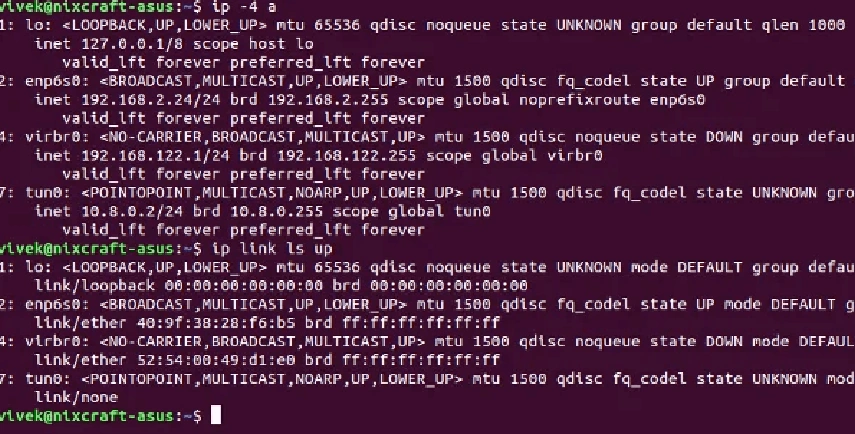
Via "Terminal", you can use one of the commands:
ifconfig eth0 | grep HWaddr or the more modern variant ip link show eth0.
The designation eth0 is an example of a network interface name. In your system, it might be called wlan0, enp3s0, or otherwise. The MAC address will be listed in the command output after the string link/ether.
How to change MAC address
Below are the main ways to change the MAC address in different operating systems. Note that the software value of the address is changed, and not all adapters support this function.
Windows
Method 1: via Device Manager
- Press Win + X → "Device Manager".
- Open the "Network adapters" section.
- Select the required adapter → "Properties".
- Go to the "Advanced" tab.
- Find the parameter Network Address or Locally Administered Address.
- Enter the new MAC address (12 characters without hyphens).
- Confirm the changes and restart the adapter.
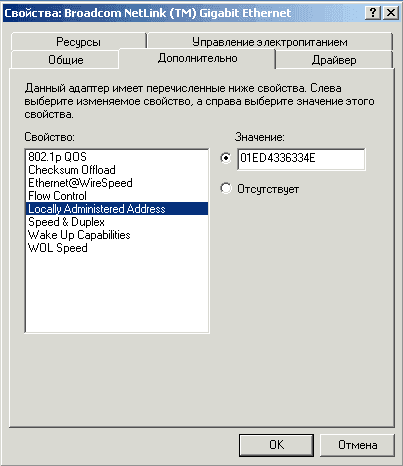
On some network cards, this parameter is missing — the driver does not support changing the MAC.
Method 2: via Registry
Used if the first method is unavailable (it is recommended to create a system restore point first).
- Press Win + R → regedit.
- Go to the path:
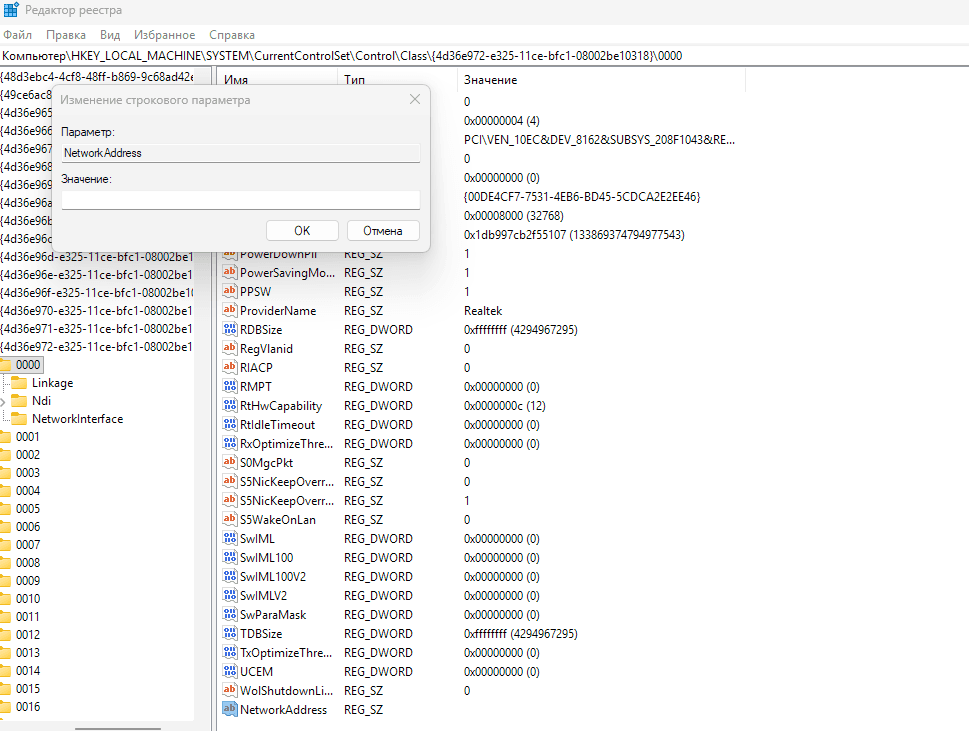
HKEY_LOCAL_MACHINE\SYSTEM\CurrentControlSet\Control\Class\{4d36e972-e325-11ce-bfc1-08002be10318}. - Inside are folders "0000", "0001", "0002"… — open each one and find the required adapter by the DriverDesc parameter.
- Create a string parameter NetworkAddress.
- Enter the new MAC address (without separators).
- Restart the computer or disable and enable the adapter.
If these methods do not work or you need to do everything faster, you can use special programs to change the MAC address.
- TMAC (Technitium MAC Address Changer) — one of the most popular programs. It shows a list of network adapters, allows you to set a new MAC address manually or generate a random one, and automatically applies changes without manual editing of the registry and adapter properties.
- SMAC MAC Address Changer — a program with a graphical interface for spoofing the MAC address of network cards, focused on quick changes without manual system configuration.
Advantages of third-party software:
- a simpler and more visual way to change the MAC address
- saves time compared to manual configuration
- convenient for users without experience working with the registry
Disadvantages of third-party software are that an additional program is installed on the system, which may work unstably or conflict with network card drivers. Sometimes after changing the MAC, the internet may disappear, and you will have to revert the settings. Such utilities require administrator rights, and when downloading from unofficial sites, there is a risk of getting a version with malicious code. Moreover, not all programs support every model of network adapter, so the change may simply not apply.
MacOS
Via Terminal:
- Open the "Terminal" application.
-
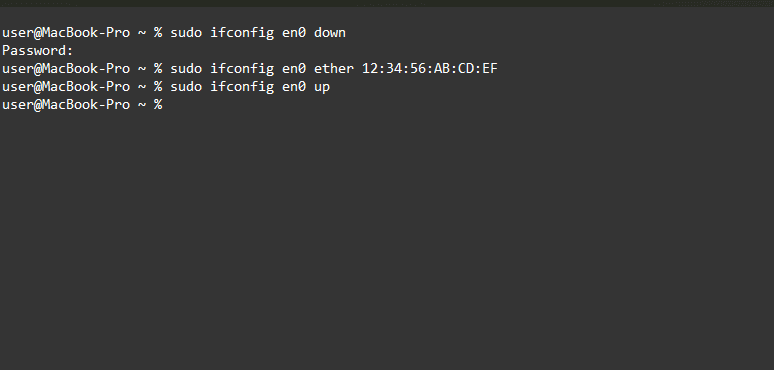
Execute the commands:
sudo ifconfig en0 downsudo ifconfig en0 ether XX:XX:XX:XX:XX:XX(new address)sudo ifconfig en0 up- Replace en0 with the name of the required network interface.
If the command did not work, you can temporarily turn off Wi-Fi and repeat the MAC address change:
sudo networksetup -setairportpower en0 off
sudo ifconfig en0 ether XX:XX:XX:XX:XX:XX (new address)
sudo networksetup -setairportpower en0 on
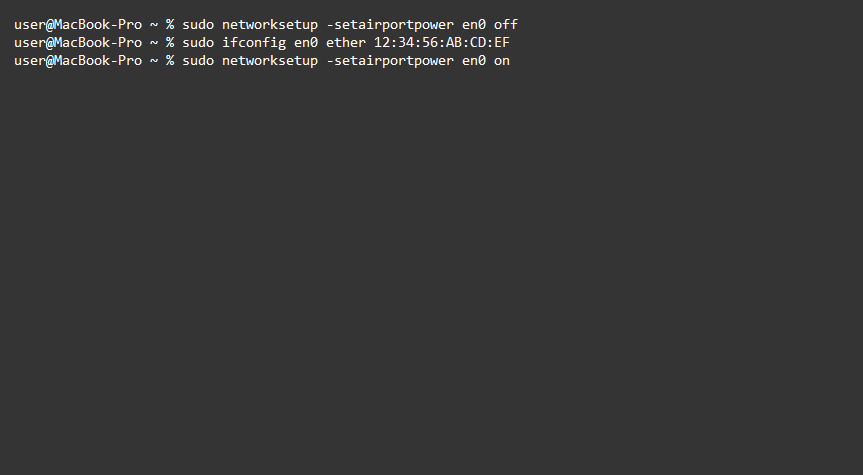
After a reboot, the MAC address usually returns to the original one. To make the spoofing permanent, a startup script is used that executes these commands when the system starts.
For macOS, there are third-party utilities with a graphical interface. They allow you to select a network interface, set a new MAC address, save profiles, and quickly switch between them without manually entering commands.
- LinkLiar — an application for macOS with a graphical interface designed for spoofing MAC addresses of network interfaces and managing profiles.
- SpoofMAC — a tool for macOS that simplifies changing the MAC address via commands, eliminating the manual entry of long parameters.
- Macchanger — a command-line utility, originally popular in Linux but also applied in macOS via additional tools, allows you to set or generate a MAC address.
Linux
The MAC address in Linux is most often changed via "Terminal". First, you need to disable the network interface, then set the new MAC address and enable the interface again:
sudo ifconfig eth0 down
sudo ifconfig eth0 hw ether XX:XX:XX:XX:XX:XX
sudo ifconfig eth0 up
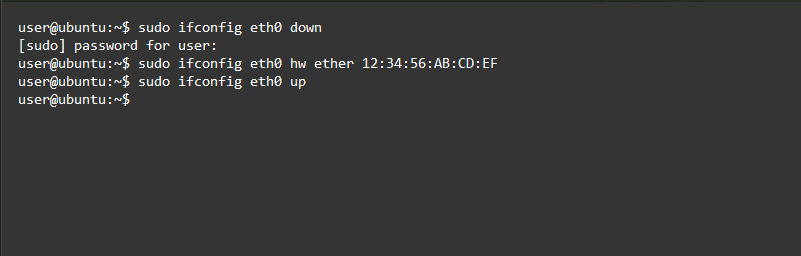
eth0 is an example of an interface name. In your system, it may be called differently, for example, wlan0, enp3s0, etc.
A more modern way for Linux is to use the ip utility, which replaced ifconfig. First, the network interface needs to be disabled with the command sudo ip link set dev eth0 down. After that, the new MAC address is set with the command sudo ip link set dev eth0 address XX:XX:XX:XX:XX:XX, where XX:XX:XX:XX:XX:XX is replaced with the desired address. Then the interface is enabled again with the command sudo ip link set dev eth0 up.
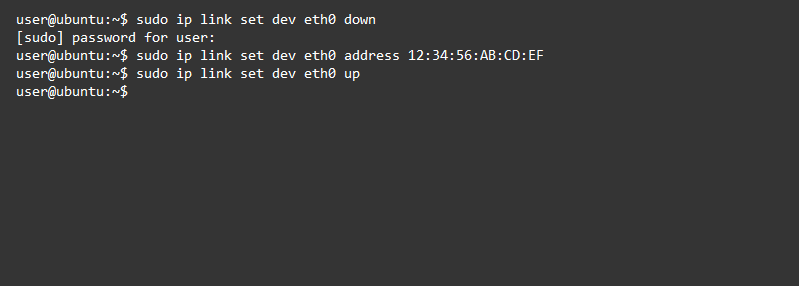
eth0 is an example of an interface name. In your system, it may be called differently, for example, wlan0, enp3s0, etc.
How to verify the MAC address change
After changing the MAC address, it is important to make sure that the new address has actually been applied. Verification is performed in the same ways as when determining the current MAC address.
In Windows, open the command prompt and type: ipconfig /all. Press Enter. In the list of network adapters, find the required connection (Wi-Fi or Ethernet). The MAC address of the device is listed in the "Physical Address" line.
In macOS, open "Terminal" and execute the command ifconfig en0 | grep ether or networksetup -getmacaddress en0 (replace en0 with the name of your interface). The output will show the current MAC address.
In Linux, you can use the command ip link show eth0 or ifconfig eth0, where eth0 is an example of an interface name. The new MAC address is displayed next to the link/ether line.
If the address has not changed, try disabling and re-enabling the network adapter or restarting the computer. In some cases, restarting the router helps—this updates network tables and eliminates possible conflicts.
If the task involves increasing anonymity, for example, when working with multiple accounts, a single MAC address change is usually not enough. In such cases, a specialized anti-detect browser is used, for example, Linken Sphere, which spoofs not only network parameters but also device characteristics within the profile.
Possible problems
Errors may occur when changing the MAC address, especially if the adapter or system does not fully support this function.
If the MAC address change is not applied. Check if your network adapter supports software MAC changing—some models simply do not have this capability. Make sure the address is entered without errors: it must consist of 12 hexadecimal characters (digits and letters A–F). Try restarting the network adapter or rebooting the computer. In Windows, updating the network card driver sometimes helps.
If the internet is lost after changing the MAC. Disable and re-enable the network adapter or restart the device. If the connection is not restored, return the original MAC address. In some networks, access is tied to a specific MAC, so when it changes, the connection may be blocked. You can also restart the router to update network tables.
Common mistakes when changing MAC address. Most often, users enter the address in the wrong format, forget to restart the interface after the change, or change the MAC of the wrong adapter (for example, Ethernet instead of Wi-Fi). Another frequent problem is attempting to set a MAC that is already in use on the network, causing conflicts and unstable connection.
Conclusion
A MAC address is a network interface identifier used to recognize devices on a local network. It can be determined and changed using standard system tools or special instruments, and the result should always be verified. Changing the MAC address can be useful for network testing, troubleshooting, or increasing privacy levels, but this setting is not supported by all adapters and may work differently in different networks.
It is important to consider the rules of the network being used. Failure to comply with these requirements may lead to connection problems or access restrictions.
Frequently Asked Questions
In macOS, the MAC address can be temporarily changed via "Terminal" using ifconfig commands by disabling the interface, setting a new address, and enabling it back. However, after a system reboot, the address usually returns to the original one. For more convenient operation, utilities with a graphical interface are used. It is important to know that changing the MAC is only one factor of privacy and does not in itself make network activity completely anonymous.
Most often, the problem is that the network adapter or its driver does not support software MAC address changing. It is also worth checking the correctness of the address format and restarting the network interface or computer. In some cases, updating the driver or using third-party software helps. If changes are not applied by any method, it means there is a limitation at the hardware level.
MAC address filtering is used as an additional measure of network access control. At home, it is configured by the router owner by adding allowed devices to a list. If connection problems arise, the correct solution is to log into the router settings and change the filtering parameters. You should not try to bypass restrictions, as this may violate network usage rules and lead to device blocking.